
Booking tool software
-
Features of the booking tool
Managing accommodations can be time-consuming: communicating with guests, keeping track of calendars and incoming payments, coordinating with service providers.
Our booking tool software is a compact, everyday tool for letting you keep an overview. The software is web-based and can be operated via a browser.
The main features of the booking tool
- Web-based, multilingual, for all currencies and tax rates
- Management of enquiries, bookings, events and blocked time periods
- Management of all guest data / CRM
- Supports any number of properties/accommodations per account, even at different locations
- Booking calendar overview
- Availability calendar for integration into your website, various formats (monthly calendar/monthly overview/annual calendar)
- Booking form with availability enquiry for integration into the accommodation website
- Booking with credit card payment (via Stripe)
- Calendar integration to your private calendar and other systems (iCal)
- Check routines for bookings (protection against double bookings)
- Automatic calculation of rental prices (incl. seasonal prices, tourist tax, cleaning …)
- Individual additional services and extras
- Deposit and down payment
- Invoicing according to legal and tax regulations in the EU (PDF, e-invoice)
- Management of incoming payments
- Mail communication to guests, automated or manual
- Task lists (e.g. for cleaning service/janitor, arrival/departure lists, payment deadlines)
- Task management for employees and service providers
- Access for service providers and employees to view calendars and their tasks
- Evaluation of capacity utilization and sales
- Interfaces / data export: xls, csv, ical
- Print of booking overviews and reservations
For which types of accommodation is the software suitable?
The software is designed to meet the needs of small and medium-sized accommodations that want to rent out directly to guests. The booking tool is not designed to be used as hotel software and does not include a channel manager.
What are the benefits of the booking tool?
The booking tool software can be customized to fit your individual workflow and the specific requirements of your accommodation. The software goes far beyond simply handling the booking process and supports you in managing your property. Processes can be optimized and automated. You’re keeping track and saving time.
-
Booking overview
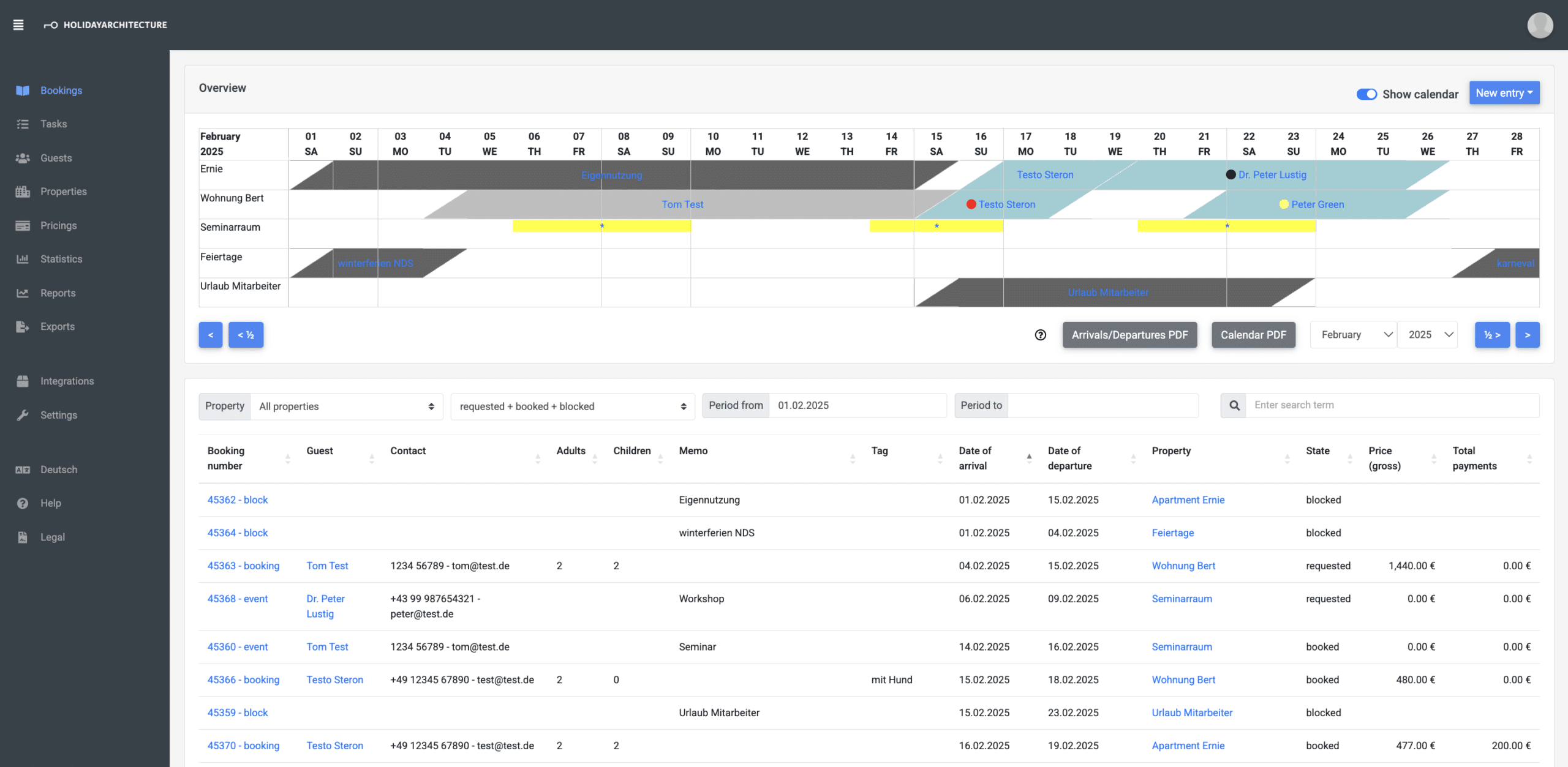
The booking overview can be found under Bookings in the menu. This overview is also displayed as the start page when you log in to the booking tool.
At the top of the page, you will find the booking overview with a calendar, below it is the table of bookings.
Calendar of the booking overview
The entries in the calendar are marked with different colors:
Bookings:
- green: booked
- light grey: requested
- red: overlapping requested booking
Blocked periods and events are highlighted in colour:
- dark grey: blocked period
- yellow: Event
Only booked and blocked periods are displayed in an external availability calendar on your website and in the URLAUBSARCHITEKTUR portal.
If you move the mouse pointer over an entry in the calendar (hover / mouseover), additional information about the booking is displayed.Print arrival/departure list & calendar
The calendar and a list of arrivals and departures can be saved or printed as a .pdf.

Different filters can be used (time periods / accommodation / arrivals or departures only, e.g.).
Creating a new entry
You can create a new booking / event or a blocked period using the corresponding buttons, but also directly in the calendar of the booking overview. To do this, click on the arrival date of the respective property.
Before creating a new booking, the guest must be created or already exist.
Table of bookings
The table shows the current and upcoming bookings when called up. Filters and a search function can be used to select which bookings are displayed.
If a period from & period to filter is defined, an evaluation for this time period is shown below the table:

-
Creating a booking
Before creating a new booking, the respective guest must first be created or already exist in the system. A booking can include one or more accommodations.
You can create a booking manually in the following ways:
- Under Bookings, using New booking
- Under Bookings in the booking overview:
In the booking overview, click on the arrival date for the chosen property. The arrival date and accommodation are preset for the new booking. - Call up the respective guest under Guests, using New booking
- Call up the respective guest under Guests – then in the booking overview:
In the booking overview, click on the arrival date of the chosen. The arrival date, accommodation, and guest are preset for the new booking.
Bookings can also be accepted via booking forms; the data is then transferred directly to the booking tool.
-
Booking details
The booking data can be customized on the details page:
Booking details

- Guest data
- Date of arrival/departure
- Number of persons
- Assignment to one or more properties
- Status of the booking (requested / booked / cancelled)
If adjustments to the guest data are necessary, the respective guest can be called up from the booking. The guest can also be changed using Assign booking to other guest.
Can be used optionally:
- Notes
- Tags: Tags are defined in the Settings and can be selected in the booking. They are also displayed in the booking overview.
- Key or access code: Code for key box or combination lock
- No automatic messages: If No automated messages for this bookings is activated, no automated emails are sent for this booking.
Billing

- Invoice date: If no date is specified, the current date will be used for invoices.
- Invoice number: By default, the booking number is used as the invoice number. Optionally, a different invoice number can be specified here.
- Billing address: By default, the invoice is issued to the guest. Optionally, a different recipient / address can be specified here.
- Invoice description: Optional information.
- Invoice text: Optional text that is displayed below the service overview in the invoice.
- Footer selection: Footers can be specified in the Settings.
All these adjustments to the invoice are optional. If nothing is entered here, the default values are used.
If Do not calculate price automatically is activated, no calculation is made using the price model. You can also set this for an existing booking. The last calculated prices then remain and can be adjusted manually; no new automatic calculation takes place if the booking is changed.
The deposit and down payment are calculated automatically if defined in the Settings. However, the totals can always be adjusted manually in the booking. The deposit and down payment are recalculated if the booking is postponed (change of date, change of accommodation) or if Recalculation of down payment & deposit is called up.
Services

With automatic price calculation, the rental price and mandatory services are automatically calculated and created. This is done based on the pricing model set for the property. Services are updated each time the booking is changed.
All services can be added and edited manually. Information on creating and editing additional services can be found in the corresponding article.The services in a booking can be sorted by order. An item number can optionally be specified for each service. The item number does not necessarily have to be specified for each service; the numbers do not have to be consecutive. Numbering such as 10, 20, 25 … is also possible.
Sorting is based on the item numbers assigned, followed by items without item numbers. On the invoice (PDF), the items are output in the corresponding sorting and automatic numbering 1, 2, 3 ….If the price model has been changed, the rental price and mandatory services can be updated using the Recalculate services function.
When services are changed, the down payment and deposit are not automatically adjusted. This can be done by Recalculating the down payment / deposit.
Discounts/surcharges

Discounts/surcharges can be added manually as a % value and are then applied to the prices of the services. Discounts/surcharges can be preset in the Pricing model, which are then selected in the booking.
Payments

Payments and transactions can be added manually.
Messages to guests

For sending new messages to guests by email, one of the stored templates can be selected. The text of an email can be customized before sending.
Invoices can be included in the email.
Other attachments (terms, forms, directions, e.g.) must be uploaded in the Settings to use them.
The overview of messages shows the mails that have been sent and scheduled automated mails that have not been sent yet. The system sends mails every 15 minutes. New mails are therefore initially displayed briefly as scheduled.
No messages are sent for cancelled bookings; an exception is when the change of status to cancelled triggers an automatic mail.
Messages can only be sent if the Settings for sending mails have been set up and activated.
If a message cannot be sent by the booking tool after several attempts, you will receive an email with a notification.Tasks

Tasks are created automatically according to the Settings or can be added manually.
Under Tasks, you can access the complete overview of open tasks from all bookingsCustomisation of the blocks on the page
The order of the blocks on the page can be customized. You can arrange the blocks according to your preferences.

-
Status of a booking
The following status is possible for each booking:
- Requested – the booking is not yet binding; it is displayed in the booking overview (light grey bar), but not in the availability calendar on your website
- Booked – the booking is confirmed; it is displayed in the booking overview (green bar) and in the availibility calendar on your website
- Cancelled – the booking is cancelled; it is neither displayed in the booking overview nor in the calendar on your website
If Allow overlapping requested bookings is activated in the Settings in the Check routines section, several requested bookings can be entered for a period.

Overlapping requested periods are displayed with a red bar in the booking overview. As soon as a booking is confirmed for a period and receives the status booked, the other overlapping bookings are automatically cancelled and receive the status cancelled.

-
Check routines
When saving a new or modified booking, the following checks are performed:
- A) Is the property still available for the time period?
- B) Is the minimum stay (according to the pricing model) fulfilled?
- C) Is the maximum number of guests not exceeded?
- D) Are the arrival/departure days possible (if set in the pricing model)?
- E) Is a pricing model stored for the selected booking period (when using the booking form)?
Under Settings, in the Check routines section, you can specify whether checks B, C, and D should be skipped when manually creating a booking.

-
Booking procedure
The following table shows an example of a booking process and explains how the booking tool can support this process.
Depending on the accommodation, other processes may be useful or desired. The booking tool can be customized for different processes.
Messages to the guest can be customized and configured. Which messages are used and whether/when this should be done automatically can be freely defined.
Guest Host Guest checks availability
The guest checks availability on the accommodation’s website.Guest sends booking enquiry
The guest sends a booking enquiry via the booking form on the website. The enquiry can only be sent if the respective period is still available.Enquiry is processed in the booking tool
The booking tool software calculates the rental price for the enquiry.Infomail to the guest
The booking tool sends the guest a feedback email: Enquiry has been received, host will be in touch shortlyInfomail to the host
The host automatically receives an email from the booking tool: A new booking enquiry has been received!Booking processing
The host processes the booking in the booking tool and decides whether to accept the enquiry. The rental price can be adjusted in the booking tool if necessary and additional services can be added.
The booking still has the status “requested” and does not appear in the calendar on the website.Guest accepts
Any questions will be clarified with the guest. The guest accepts.Booking is binding
The booking is now binding, it is set to “booked”. The period is now displayed as unavailable in the calendar on the website.Booking confirmation
The host sends the booking confirmation with payment details via the booking tool.Deposit
The guest pays the deposit as stated in the booking confirmation.Payment confirmation deposit
The host notes payment in the booking tool and sends a payment confirmation with the details for the remaining payment.Final payment
The guest makes the final payment in accordance with the details in the booking confirmation.Final payment
The booking tool reminds you to check that the final payment has been received.
If the final payment has not been received on time, the booking tool can also optionally send an automatic reminder email to the guest.Arrival details for the guest
The booking tool sends an email to the guest before the arrival date with arrival details and information about their stay.HOLIDAY ! Invoice
The invoice for the booking is generated in the booking tool and sent to the guest by email.Feedback mail
The booking tool sends an email to the guest: “We hope you enjoyed your stay, we look forward to your feedback or rating!” -
Internal calendar in the booking overview
Would you like to store information such as employee vacation times, school holidays, or public holidays in the booking overview alongside the bookings?
To do this, you can create additional properties and use them as internal calendars. You can then block the corresponding periods and see an overview of all periods in the booking overview.

-
Blocked time period
If a property is not available for rent (due to renovation, personal use, etc.), the corresponding period can be blocked.

Blocked time periods are displayed in the booking overview in the booking tool with a dark gray bar.
In the calendar on your website, the period is displayed as unavailable; no difference is made whether a period is blocked or booked.
It is also possible to block just one day, so that a departure in the morning and a new arrival in the evening are still possible.Convert to booking can be used to transform the blocked period into a booking.
There are different ways to create a blocked period, just as there are for creating a new booking.
-
Events
Events are a special type of booking used to map workshops, meetings, and similar activities in the booking tool:
- Bookings without overnight stays
- Activities during a booking ( catering, etc.)
- Activities that overlap
The options available for an event are the same as for a booking, but with the following differences:
- An event can overlap with a booking or with another event. There is no check to see if the property is available!
- Automatic price calculation is not available for events. Services can be created and edited manually.
- Automatic messages or automatic tasks are not available for events. Messages and tasks can be created manually.
Like bookings, events are linked to a guest and one or more properties.
Services can be created/edited, and an invoice can be generated for an event.
There are different ways to create a new event, just like when creating a booking.
Events are displayed with a yellow marker in the booking overview.
Events are not shown in the availability calendar on your website. To show the period as unavailable in the calendar on the website, the period can be blocked.
-
Tasks
Tasks can be created for a booking, a blocked period, or an event.

A task always refers to a property and a provider who is responsible for the task.
For bookings, it is also possible to define templates for tasks in the settings, which are automatically created as soon as a booking is confirmed. This can be used for routine tasks, such as the cleaning.
Under Tasks, you can access a complete overview of all open tasks. The overview can be filtered, by providers, property ,etc.
Tasks that have been completed can be marked as completed.If Automatic completion is activated for a task, it will be marked as completed on the due date autmatically .
-
Guests
Unter Guests you find an overview of all guests:

You can use the full-text search to search for names and contact details (place of residence, company name, email address, notes, etc.).
Clicking on a guest takes you to the guest’s detailed data with a list of all bookings. At least the name and email address must be stored for each guest; all other information is optional.
Duplicates in guest data
In the complete overview of all guests, duplicate contacts can be found using Find duplicates. This filter finds duplicates in names and email addresses. To eliminate the duplicate, simply open the duplicate contact and use Merge guest data. This will transfer the existing bookings and delete the duplicate.
-
Properties
Under Properties, you find an overview of your accommodations:

Properties can be grouped; each property can belong to several groups. Groups of properties can be more easily filtered and evaluated in the overviews.
Clicking on a property takes you to the detailed data:
- Position can be used to define the position in which a property is displayed in the tables of the booking tool.
- Name of the property is the full name used in communications with the guest (e.g., “Lake View House, First Floor Apartment No. 1”).
- Short name is the internal name in the booking tool (e.g., “Apartment 1”).
- Each property can be assigned to a Pricing model. If a pricing model is stored, the rental price for a booking is calculated automatically.
If NO pricing model is assigned, the rental price for a booking can be entered manually. A pricing model must be stored to use booking forms for a property - If a property is no longer available for rent, it can be marked as deactivated. The property will then no longer appear in the overviews in the booking tool, new bookings can’t be created. Historical bookings for this property will be retained.
-
ical-link of booking data
ical is the standard data format for calendar data. On the property’s details page, you will find two versions of the calendar’s ical-link:

- The public link transfers the occupied days without detailed information.
- The private link contains additional booking data: booking number, notes, name, and contact details of the guest – but NO price information for the booking. When sharing the private link, the applicable data protection regulations must be observed!
You can use the ical-links to store them in a calendar (Outlook, Apple Calendar, e.g.) or in another booking system.
When adding ical-links to a calendar, make sure to add the data as a “subscription” to ensure that the data is updated regularly. How often the date is updates depends on the calendar software used.
Various calendars also offer the option of importing data via iCal. This usually means that the data is only added to the calendar once and is not automatically updated afterward.Customizing the ical-links
The ical-links generated by the booking tool contain by default all bookings with the status booked and all blocked periods. In some cases, it may be useful or necessary to also transfer canceled bookings and requested bookings; for example, when a receiving system only processes a canceled booking correctly if the booking is transferred as a cancelled calendar entry.
The ical-links can be extended and configured with the following additions so that cancelled bookings/requested bookings and arrival/departure times are also transferred; the language of the detailed information in bookings can also be adjusted in this way:
Requested bookings:
...&includeInquired=trueCancelled bookings:
...&includeCancelled=trueLanguage of detailed information German/English:
...&locale=de
...&locale=en
Arrival/departure time:
...&includeArrivaltime=16&includeDeparturetime=10
The time can be adjusted accordingly. Adding arrival and departure times improves the display of bookings in some external calendar systems.Examples:
ical-link (example):
- https://urlaubsarchitektur.biz/assets/ical/property-calendar.ics?propertyId=123456789
Link with additions:
- https://urlaubsarchitektur.biz/assets/ical/property-calendar.ics?propertyId=123456789&includeCancelled=true&includeInquired=true
- https://urlaubsarchitektur.biz/assets/ical/property-calendar.ics?propertyId=123456789&includeArrivaltime=16&includeDeparturetime=10
-
Pricing models
Under Pricings, you find an overview of the pricing models and the assigned properties:

What is a pricing model?
A pricing model maps the prices of an accommodation, including the different prices and conditions depending on the period booked.
When a booking is created or modified, the rental price is (re)calculated according to the assigned pricing model.
Any number of price models can be created, and each property can be assigned a different price model. A price model can also apply to multiple accommodations.
The assignment of pricing models to property can be edited under Properties.
Rental prices

- Basic prices: Lowest price in the off-season, set for one or more years.
- Seasonal prices: Higher prices for periods during the season (high season, New Year, holidays, etc.). Seasonal prices take precedence over base prices.
- Price calculation days/nights: Prices can be calculated for days or nights. When calculating by days, the arrival day is also included in the calculation. Standard is a price calculation by nights.
- Weekend prices: Specify both the weekend overnight price and days considered as weekend days. When calculating the price by nights, select the start day, e.g., Friday for the night from Friday to Saturday. If no day is set, weekend prices will not be used in the price calculation.
- Arrival days / departure days: As an option, you can specify on which days arrivals/departures are possible. For example: arrival: Saturday / departure: Saturday -> only bookings from Saturday to Saturday are possible.

- Minimum stay: Minimum number of days or nights that must be booked for the period.
- Reduced price: Reduced price per day/night for longer stays
Please Note:
- For each period stored under base prices and seasonal prices, the price + the arrival days + minimum stay can be set. For example, it is possible to set a minimum stay of 2 nights in the off-season, but 7 days in the high season.
- Please make sure that the periods stored unter base prices do not overlap, and also the periods stored under seasonal prices.
Additional services
Additional services such as cleaning fees, visitor’s tax, etc., can be stored here. Mandatory services are automatically included in the booking. Optional (non-mandatory) services can be added manually to the respective booking if required. For further information, see the article about creating and editing additional services.

- Price calculation days / nights / once: Prices are calculated based on the number of nights, days, or as a one-time flat rate.
- Unit: Prices are calculated according to the number of children, adults, total number of guests (children, adults, e.g.) or as a flat rate.
Discounts / surcharges

Discounts or surcharges can be defined with a % value. They can either be used as mandatory when calculating prices or added manually to a booking.
Discounts must be specified with a negative sign (-5%). Surcharges can also be used to map local taxes. Multiple surcharges/discounts can be used for each booking.By default, surcharges/discounts are included in the gross prices. They are not visible to the guest on the invoice.
As a special case, you can also select a calculation based on net prices and without tax. This corresponds to the calculation that often has to be used for local taxes. The surcharge/discount is then shown separately on the invoice.Check pricing

When validating the price model, the system checks for each day if a price has been stored. The report can be downloaded as a report (.pdf). Days without a price or days for which several prices have been stored are marked as errors in the report.
Effects of changes to the pricing
Changes in the pricing only affect future or modified bookings; prices for existing bookings remain unchanged unless the booking is edited (change of arrival/departure date or change of accommodation) or the prices in the booking are manually updated using Recalculate services .
Multiple price models per property
It is possible to store multiple pricing models for a property, for example, a separate pricing for each year. The details in the pricing models must not overlap.
Additional services will be charged according to the price model valid on the day of arrival. -
Create and edit additional services
Additional services are additional to rental charges (e.g., final cleaning). They can be created/edited as templates in the pricing model and per booking:
A) price model
Templates for additional services in the pricing model:

B) booking
Services can be created for each booking under Services using New service or adding a preset service from the pricing model:
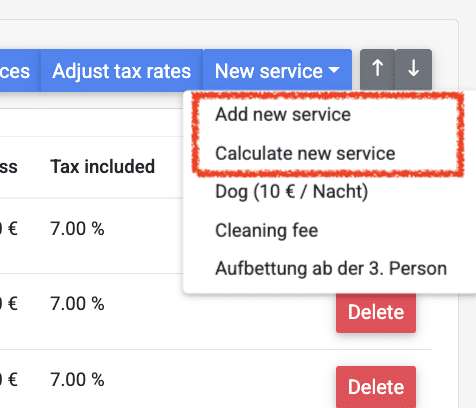
With Add new service a service is added as a flat price without a calculation.
Price calculations are available using Calculate new service. The number of persons (adults, children, adults + children) and the days/nights of the booking can be included in the calculation. Below is an example showing the calculation method (total = A * B * C * D):

In the Pricing, the number of persons (adults, children, adults + children) can optionally be stored with an offset. As an example a service from the third person:

-
Main menu of the booking tool
The main menu in the sidebar is divided into the following areas:
- Collapse/expand the sidebar
- Logo = link to the start page of the booking tool (booking overview)
- Funktion of the booking tool
- Integrations (calendar and booking form for your website)
Settings for the booking tool - Language selector
Link to documentation
Link to our Temrs
Notes on the language selection switch: The booking tool is bilingual (German / English). The language for the account can be changed using the switch.
Invoices are always created or sent in the currently set language. -
Supported browsers and devices
We recommend the latest versions of Chrome or Firefox browsers when using the booking tool. Apple’s Safari browser has technical features that can lead to display errors in some cases.
Adjusting the display in your browser
If the booking tool is not displayed completely in the browser window, you will need to adjust the zoom factor of the browser. This can be done via the browser settings; in most browsers, this can be done using the following keyboard shortcuts:
- Mac: cmd / command and “+” (zoom in) / cmd and “–” (zoom out)
- Windows: CTRL and “+” (zoom in) / CTRL and “–” (zoom out)
The display will automatically adjust to the new setting after reloading the page.
Using mobile devices
The booking tool layout is optimized for desktop views. Technically, it is possible to use the booking tool on mobile devices, but the use is limited due to the screen size.
We recommend:
- Min. 11-inch (approx. 28 cm) screen
- Keyboard and trackpad
- Chrome or Firefox browser
We have had good experiences with Chromebook tablets, for example.
-
urlaubsarchitektur.de <-> booking tool
We can use the availability data from the booking tool for the calendar in your entry on urlaubsarchitektur.de.
Apart from that, the booking tool works independently of urlaubsarchitektur.de and can also be used if there is no entry on urlaubsarchitektur.de.
Booking forms from the booking tool are only available for your own website, not for urlaubsarchitektur.de.
Please let us know if you would like us to use the availability data from the booking tool for urlaubsarchitektur.de as well.
-
Reports
The following Reports are available:
- Received payments: Table of received payments
- Upcoming payments: Table of expected, outstanding payments for cash flow planning. It is assumed that outstanding payments will be received by the departure date of a booking.
- Tax: Table of bookings with the sum of taxes included in the fee.
All reports can be filtered and exported.
-
Exporting data from tables
All tables in the booking tool (e.g., bookings, guests, tasks) can be downloaded as PDF or Excel files using the buttons at the bottom of each table.

Data can also be copied to the clipboard using Copy and thus transferred to other software. The data is transferred or downloaded according to how the tables are currently filtered.
-
Bulk export of invoices
For each booking, the corresponding invoice can be downloaded on the booking details page.
A bulk export is possible under Exports. Bookings can be filtered and selected there. Invoices are created for the selected bookings and can then be downloaded as a ZIP file.
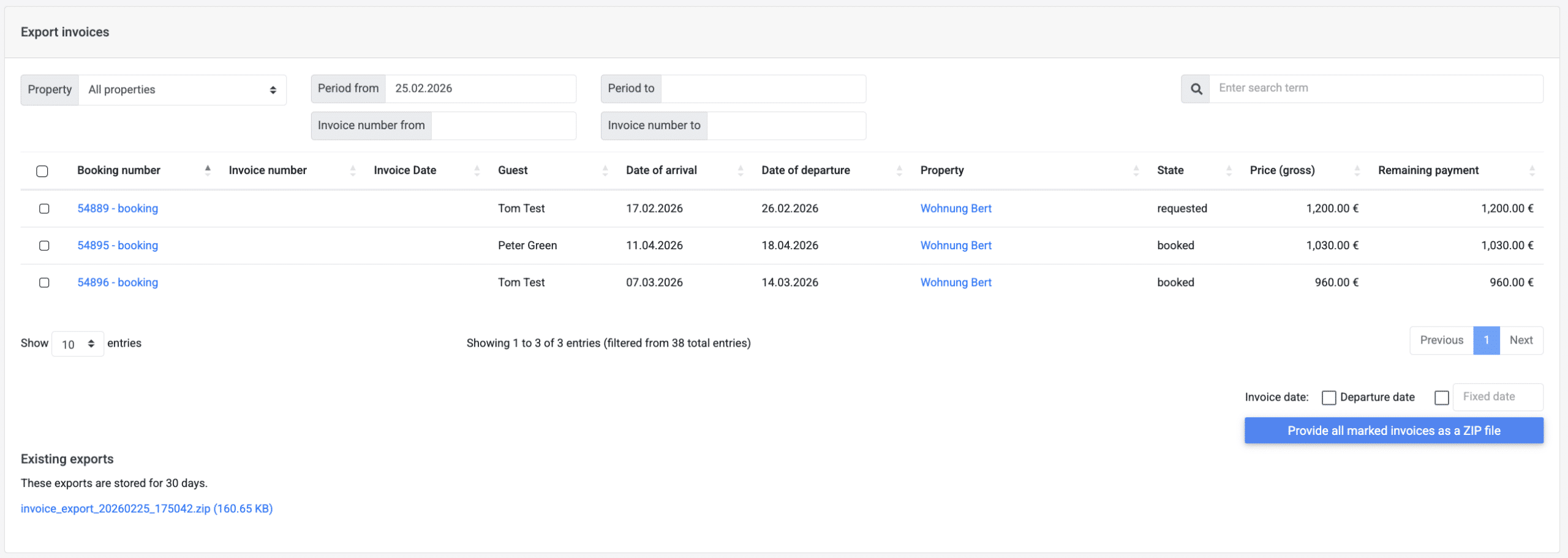
Invoice date for bulk export
The invoice date can be set as an option:
- as the departure date
- as any selected date
If an invoice date was already stored in the booking, it will be overwritten according to the set definition.
If no invoice date is defined for the export, the invoice date from the respective booking is used. If no invoice date is defined for the booking, the current date is used.
-
Statistics (utilization and sales)
Under Statistics, you can access a graphical evaluation of capacity utilization and sales.

The evaluation can be filtered by property and time periods, and can be switched between months and years. Selecting one of the data points in the graph with the cursor displays the corresponding values.
-
First steps for new users
Getting started
- Check the system requirements for using the booking tool (browser, device).
- Assign a new password for your account in the Settings.
- Sign up for our mailing list to receive updates about the booking tool.
- If you are using a test account, please read our notes.
- Read our Good to know FAQ.
Our video tutorials can help you get to know the booking tool. On request, we can also schedule an onboarding call with Teams or Zoom and give you a brief overview of the booking tool’s features.
How you get started with the booking tool depends on whether you are new to renting or already have some experience:
- If you are new to renting, please find our recommendations for the first steps below.
- If you are already renting out your property, you need to decide whether you want to transfer existing guest and booking data; please contact us to discuss this.
Step 1
- Create the Properties or complete the data.
- Enter blocked time periods in the calendar for which you do not want to rent out.
- Set up the settings for sending emails so that messages can be sent.
- Create message templates according to your booking process or customize our standard templates accordingly.
Step 2
- Create a pricing model or several pricing models for accommodations with different prices.
Step 3
- Create availability calendars and booking forms under Integrations and integrate them to your website.
If you are new to renting, we recommend planning the setup step by step over a few weeks. New landlords usually need some time to gain experience with the booking procedure.
Booking requests can be made by email at the beginning, but the guest and booking details must then be entered manually into the booking tool. -
Good to know
The booking tool has different types of entries:
Before creating bookings or events, the guest must always be created first or already exist.
Bookings and events always have a status:
- requested
- booked
- canceled
In the booking overview, the entries are displayed in different colors:
Bookings
- green: booked
- light gray: requested
- red: overlapping requests
Blocked periods
- dark gray
Events
- yellow
Requested bookings are NOT displayed in the external availability calendar on your website and in the calendar in the URLAUBSARCHITEKTUR entry. In both calendars, bookings and blocked periods are not differentiated, but simply displayed as unavailable periods.
All entries (bookings, blocked periods, events) have an unique ID, the booking number. The number is assigned by the system and cannot be changed.
-
Settings: Account owner and login
You can access the basic account settings under Settings.
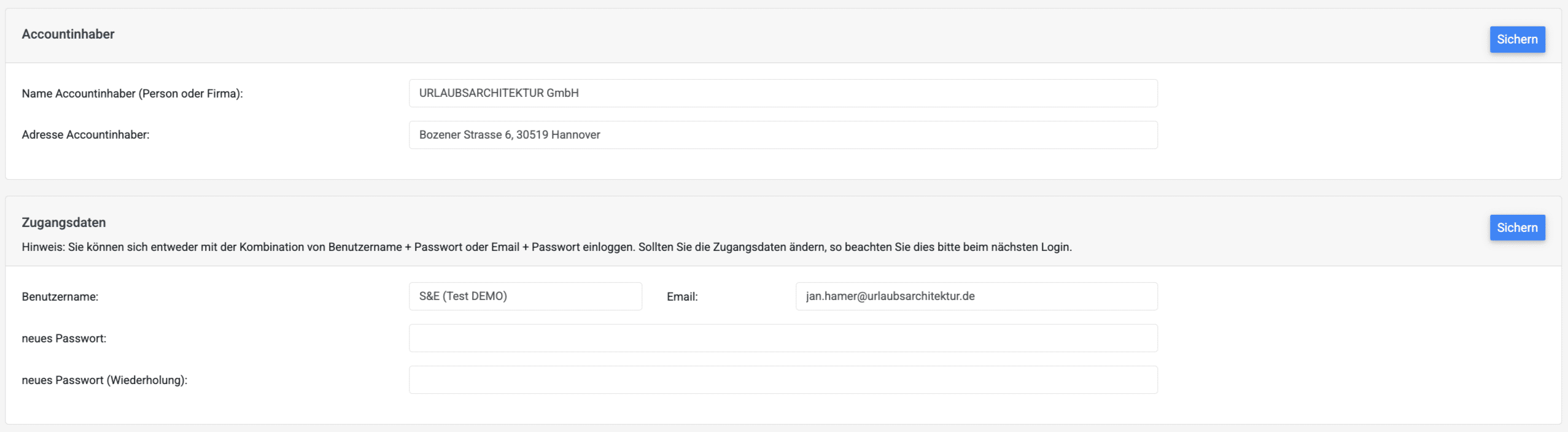
The following settings are possible here:
Account holder settings
Name and address of the account holder
Setting access data
Change of password, email address (email address of the account) and user name
You can log in to the booking tool with your email address and password or with your user name and password. The account email address stored here is also used for messages from the booking tool to you, e.g. when a new booking is received via a booking form.
Note: The email address used to send messages to guests is defined in the settings for sending emails. -
Settings: Check routines
The following settings are available in the Check routines section of the Settings:
- Allow overlapping requested bookings: If this is activated, multiple requested bookings are possible for a time period. If one of the bookings is confirmed, all other requests are automatically given the status cancelled.
- Skip booking checks (minimum stay, maximum occupancy, and arrival/departure days) when manually creating/editing bookings: If this is activated, the checks are skipped when manually creating bookings in the booking tool.
More information on checking a booking.
-
Settings: Sending mails
Before messages can be sent as emails, the details for your SMTP server must be entered in the Settings and checked/verified with a test email. The SMTP server is your provider’s server for sending emails.

The emails sent can then usually be found in your email account in the sent mail folder (depending on your mail server settings).
Which email addresses/providers are suitable, and what should be considered?
- All email addresses that allow access to the SMTP server are suitable; these are practically all providers.
- With some email providers, such as Google or Microsoft M365, an “App password” must be created and used.
- The booking tool does not support email addresses that require authentication with e.g. OAuth, Microsoft Entra / Azure Active Directory instead of a password.
The email address for sending emails from the booking tool may differ from the account email address, for example:
- Account email address: tom.host@mail.de // Use this email address to log in and receive emails from the booking tool, e.g. when new booking inquiries are received.
- Mail address for messages: info@property.de // Messages are sent to guests using this mail address as the sender. If no separate email address is stored, the email address of the account will continue to be used.
Settings for sending mails
- Enter the details for your SMTP server in the Settings and save them. You get this information from your provider; it usually corresponds to the settings that you also store in your mail software.
- If mails shall be sent in cc to other email addresses, this can be stored, even for several email addresses.
- Start the verification of the email address.
- A message indicates whether the verification was successful or not.
- If verification is not successful, check the details entered.
- After the verification was finished successfully, “Status: activated” will be displayed in the header of the section. The setup is only complete when this is displayed.
- If you encounter any problems, please send us a support inquiry.
Possible problems with settings for sending mails:
- For some providers, incorrect information about the SMTP servers can be found online, especially with wrong ports.
- The email address to be used for sending does not match the SMTP account/SMTP password.
Please check which SMTP password your provider has assigned to the intended email address. You may also need to create and use a special “app password” with your provider.
-
Settings: Invoices
Basic settings for invoicing are possible in the settings:
Settings for invoicing
- Currency used
- Standard tax rate: This is the tax rate that is used by default. Different tax rates can be used in the services of a booking and in the pricing model.
- Deposit and down payment: Setting for automatic calculation as a percentage or fixed amount. If nothing is defined here or 0% is specified, no automatic calculation of deposit/down payment will take place.
- Invoice numbers: Set whether consecutive invoice numbers shall be used + the next invoice number. If this is NOT activated, the booking number is used as the invoice number.
Settings for PDF invoices
- Company details on the letterhead of the PDF invoice
- The standard invoice text can be used for notes or disclaimers, for example, and the text is used in the PDF invoice if no individual invoice text is specified in the respective booking.
- Upload of the logo, which is used in the invoice header and can also be used in the messages. On the invoice, the logo is limited to a width of 175 px. The possible file formats are .jpg and .png.
- Definition of footers for invoices. Optionally, different footers can be set, with different account details, company details, or address details, etc.
Settings for E-invoices
Starting from 2025, E-invoices will become mandatory in the EU if the invoice recipient is a company.
E-invoices are created as PDFs with additional XML data (ZUGFeRD) and fulfill the legal requirements. The invoice can be displayed and printed as a PDF, but the invoice data is also machine-readable and machine-processable.
In order for e-invoices to be created, the Create PDF invoice as e-invoice checkbox must be activated. Furthermore, the company details for the invoice issuer must be set in the E-invoice settings section. The details of the invoice recipient must also be entered in the guest’s data.
When using the e-invoice for the first time, we recommend checking the created PDF with a validation tool (e.g. www.portinvoice.com).
-
Settings: Templates for messages
Templates for messages can be created and managed under Settings in the corresponding section. Any number of templates can be created for mails.

Placeholders for the data fields (for booking number, guest contact details, booking data, etc.) can be selected via the menu and inserted into the message template:

Each template applies to the assigned properties, so individual templates can be defined for each property.
Messages from a template can also be sent automatically as an option; the trigger must then be defined accordingly, e.g:
- Trigger: Arrival -5 days -> Mail is sent automatically 5 days before arrival
- Trigger: Departure 3 days -> Mail is sent automatically 3 days after departure
- Trigger: cancelled 0 days -> Mail is sent automatically as soon as the booking is cancelled
- Trigger: Requested via booking form 0 days -> Mail is sent automatically as soon as a booking request is received via a form
Additional details and conditions can be defined for sending automatic messages:
- The Recipient of the message is the guest by default. The email address stored in the guest’s contact details is then used to send the message.
Alternatively, a service provider can also be defined as the recipient. - Send automated mail only if the booking status is “booked” – If this function is activated, automatic messages for the template are only sent if the booking has the status booked.
- Send automated mail only if the booking status is “requested” – If this function is activated, automatic messages from the template are only sent if the booking still has the requested status.
- Send automated mail only if the booking is not yet fully paid – This can be used to send automatic reminders for payments. If this function is activated, automatic messages from the template are only sent if the booking has not yet been paid in full.
If a booking is created or confirmed at such short notice that the defined dispatch time of an automatic message has already been exceeded, this message is no longer sent by the system. The message must then be sent manually.
Attachments for messages
Attachments can be added to the message templates. This function is intended for sending standard documents such as contract conditions, forms, route sketches etc. to guests. The management of attachments can also be found in the settings.

Attachments must first be uploaded in the corresponding section of the settings and can then be added to the message templates and also individual messages in a booking.
Changes to templates
Changes to a template take effect immediately for all current and future bookings. New automated messages also take effect for existing bookings, if the date for sending has not yet been exceeded.
Notes on placeholders for data fields
Placeholders for the data fields can be selected via the menu and inserted into the message (screenshot above). Notes on some placeholders:
- Remaining payment refers to the status of payments received (outstanding balance = total gross amount – total payments). This placeholder is also available including deposit.
- Final payment refers to the specified down payment (final payment = total gross amount – down payment). This is independent of the status of incoming payments and corresponds to the typical payment processing of a deposit at the time of booking and a final payment before arrival. This placeholder is also available including a deposit.
- The placeholders Rent from pricing (gross) and Additional services (gross) can only be used with a pricing model. This allows you to specify what share of the total price is for the rent and what share is for additional services.
-
Settings: Templates for tasks
Templates for tasks can be created and managed under Settings in the corresponding section.

Task templates are applied when a booking receives the status booked and are then automatically created for the booking.
Templates for tasks do not apply to Events or Blocked time periods.The template defines the service provider and the date for which the task is created. The date is defined via the trigger, e.g.,
- Trigger: Arrival -10 days -> Tasks from this template are created for the date 10 days before arrival
- Trigger: Departure 0 days -> Tasks from this template are created for the date of departure
If automatic completion is activated, tasks from the template are automatically marked as completed on the due date.
Changing templates for tasks
Existing tasks are not changed when the templates are modified. New automated tasks are created in accordance with the changed settings when a booking receives the status booked.
-
Settings: Service provider
Service providers can be assigned tasks in the booking tool. They can be set up and managed in the corresponding section of the Settings.

Service providers can optionally be provided access to the booking tool:

With access to the booking tool, it is possible for service providers to:
- Log in to the booking tool
- See assigned tasks
- Mark assigned tasks as completed
- Overview of the bookings associated with the tasks
A service provider cannot change booking data and has no insight into financial details. Access for a service provider can be deactivated or adjusted at any time.
In the settings, you can optionally allow a service provider to view all bookings for selected accommodations:

-
Settings: Tags
Tags can be defined under Settings to label bookings or guests.

Tags can be selected for a booking or a guest. They are also shown in the booking overview.
-
Integrations
The booking tool software offers widgets that can be embedded in your website:
- Availability calendar
- Booking form
- Chatbot
Each widget is explained in a separate article. For each widget, there are two types of code for integration into a website:
- Javascript
- iframe
Important note: If you use a website builder (Wix, Jimdo, etc.), check in advance whether your provider allows the embedding of code.
Due to technical restrictions by some providers, we recommend using an open and widely used technical solution for your own website, such as WordPress.
-
Integrations: Availability calendar
Under Integrations, calendars can be set up for your website. Any number of calendars is possible.

The following settings can be defined for each calendar:
- availability for one or more properties
- the calendar format (monthly calendar, yearly calendar, etc.)
- language (German/English)
- display settings (colors)
- optional: display of prices (only available for calendars with a single property)
- optional: calendar widget without CSS; settings can then be configured on the website using your own CSS
The calendars can be displayed as a preview.
There are two types of code for each calendar for integration into a website:
- JavaScript (script)
- iframe
Information about the CSS stylesheets can be found in a separate article.
We recommend using the JavaScript version. Sometimes JavaScript is not allowed or causes conflicts. In this case, you can use the iframe version.
Calendars can be customized in the booking tool without having to change the code on your website.
The calendar is designed for use with up-to-date browsers. When using your website with outdated browsers (such as Internet Explorer), display problems may occur when viewing the calendar.
Please ensure that caching is disabled in the browser for websites that have integrated booking calendars so that the booking calendar is always reloaded with the latest information.
Note on older calendars: Since the booking tool was updated to version 1.21 on October 16, 2025, a new, revised version of the calendar is available. Previously created calendars will continue to function, but can no longer be customized. If changes are necessary, you must switch to the new version of the calendar.
-
Integrations: Booking form
Under Integrations, booking forms can be set up to use on your website. Any number of forms are possible.
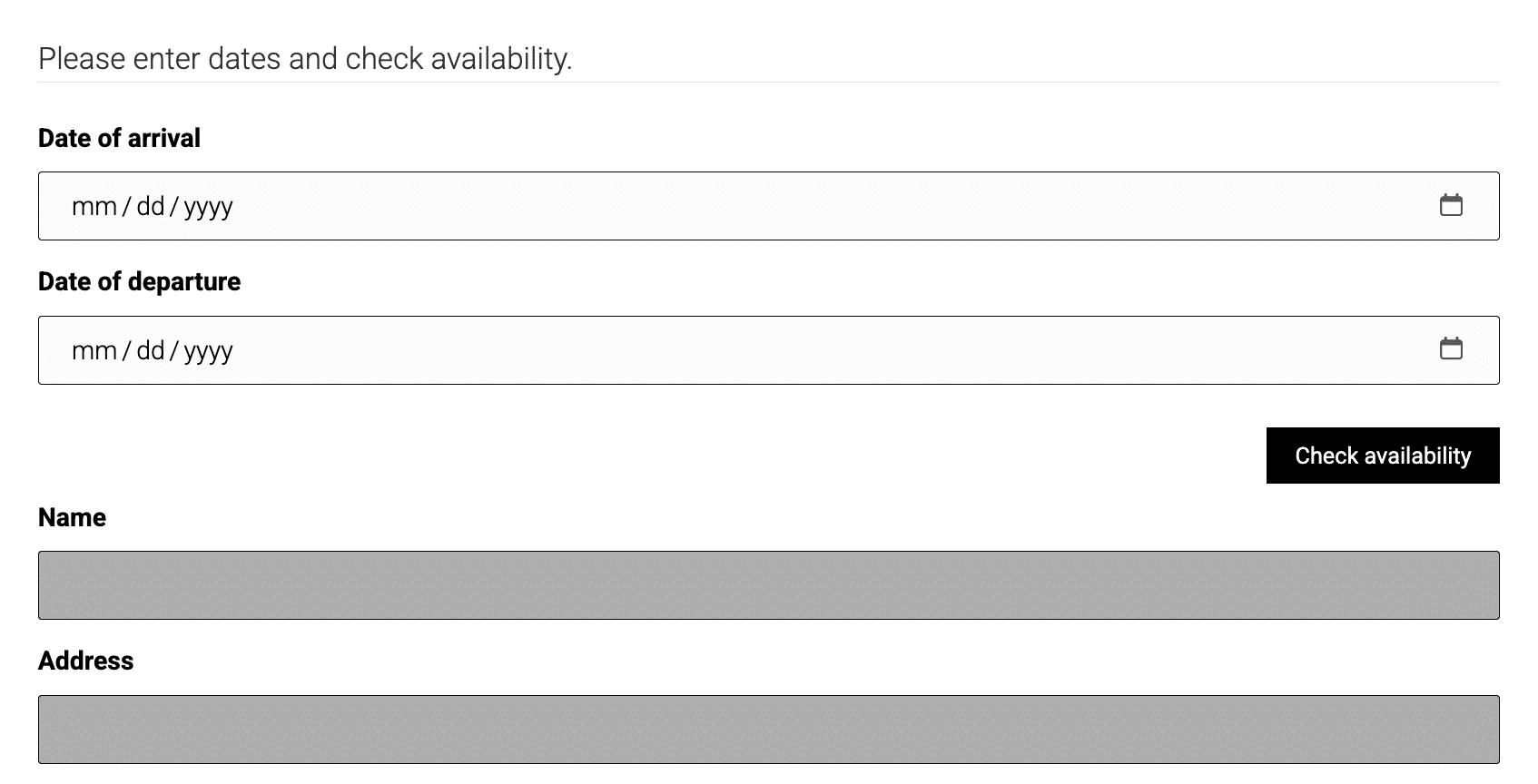
Depending on the settings, booking forms can be used for:
- Booking requests: Requests are sent via the form and created as requested bookings in the booking tool. You will receive an email about the request.
- Binding bookings with credit card payment: After the booking has been entered, payment is made by credit card and the booking is then created in the booking tool as a confirmed booking. You will receive an email about the booking.
The booking form always works in two steps: first, the availability of the property at the specified time is checked. If availability is confirmed, the booking form will ask for your contact details (name, address, email, telephone number) and the number of people (adults and children). Additional settings and queries are possible for each booking form:
- select one or more properties
- up to 5 user-defined fields for additional information
- display settings
- customization of texts
- optional: form without CSS; settings can then be completely customized on the website using your own CSS
- optional: booking with credit card payment. Further information is available in a separate article.
For integration into a website, there are two types of codes for each form:
- JavaScript (script)
- iframe
Information on CSS stylesheets can be found in a separate article.
We recommend using the JavaScript version. If you use a website builder for your website, some systems do not allow JavaScript or it causes conflicts. In this case, you can use the iFrame code version.
The language of the form can be customized in the code:
... &locale=enor
... &locale=enForms can be customized in the booking tool software without having to change the code on your own website.
The forms are designed for use with up-to-date browsers. When using your website with outdated browsers (such as Internet Explorer), display problems may occur when using a booking form.
Under Message Templates in the Settings, you can set up an automatic message to the inquiring guest confirming receipt of the request.
Note on the use of booking forms
Booking forms make your work easier because only requests for available periods are accepted. Booking forms therefore always have the effect of reducing the number of requests you receive. For accommodations with low occupancy, a booking form is sometimes not useful. In this case, a general contact form or inquiries by email will result in more bookings from guests who, for example, inquire about several possible booking periods or want to get a clearer impression of the accommodation from communicating with the host first.
Note on the required pricing model
A pricing model is required to use a booking form. If no pricing model is stored or the data for the requested period is incomplete or missing, the request cannot be sent.
Note on older booking forms: Since the booking tool was updated to version 1.21 on October 16, 2025, a new, revised version of the booking forms is available. Previously created forms will continue to work, but can no longer be customized. If changes are necessary, you must switch to the new version of the forms.
-
Integrations: Credit card payment
Booking forms can be used for binding bookings with credit card payment.
Credit card payments are processed via the provider Stripe (www.stripe.com). You need a Stripe account to use this service. URLAUBSARCHITEKTUR is not involved in the payment processing and does not receive any data on transactions. You can manage all incoming payments / payouts / refunds in your Stripe account.
To connect your Stripe account with the booking tool, you need your public key and the secret key. You can find both keys at Stripe under Developer / API Key. Enter both keys under Integrations in the Stripe integration section and start the verification.
Furthermore, activate the option Credit card payment for the booking form.
Booking procedure with credit card payment
- The availability of the accommodation at the specified time is checked in the booking form.
- If the booking is possible, the calculated price is shown. You can then enter the other details and pay the full rental price by credit card. The booking is then transferred to the booking tool as booked and the payment is saved in the booking.
- You will receive an e-mail about the booking received.
- If the credit card payment cannot be made successfully, the booking is transferred to the booking tool as a requested booking and can then be processed manually.
You can set up an automatic message to the guest to confirm the booking via the message templates in the Settings.
Notes: In order for credit card payments to be possible, it must be feasible to calculate the price of the booking. Please ensure that the pricing model does not contain errors that could lead to incorrect price calculations. When making a booking, it must be clear to the guest which terms and conditions apply.
-
Integrations: Chatbots
Chatbots can be created and integrated into the accommodation websites.
You can find an example of such a chatbot here: Chatbot Demo.A ChatGPT account is required to use the function. The ChatGPT API key must be stored under Integrations.
A chatbot can answer questions and accept booking inquiries. The chatbot only uses the information entered in the field Context information for the chatbot. A complete description of the house, the neighborhood, facilities, etc. should be entered here.
-
Integrations: CSS stylesheets for calendars and booking forms
Adjustments for calendars and forms can be made under Integrations in the settings for each widget or alternatively with custom CSS on your website.
Each widget (each individual calendar/booking form) has a unique container ID:
ua-container-[CONTAINERID]CSS variables
--ua-vertical-unit: 5px;
--ua-horizontal-unit: 10px;
--ua-border-radius: 2px;
--ua-border-color: #404014;
--ua-button-color: #404014;
--ua-button-secondary-background-color: #666666;
--ua-disabled-color: #d9d9d9;
--ua-button-text-color: #ffffff;
--ua-focus-border-outline-color: #afdd28;
--ua-message-background-color: #fbf4eb;
--ua-message-border-color: #cf7205;
--ua-message-text-color: #995200;
--ua-button-border: 1px solid var(--ua-border-color);
Example:
.selector #ua-container-[CONTAINERID] {
    --ua-vertical-unit: 3px;
    --ua-horizontal-unit: 6px;
}
Important: The adjustments to the variables always refer to one widget.
-
Integrations: Booking form for general enquiries
You can also set up a booking form to receive inquiries for any period and without selecting a property:
- Create an additional property, e.g., “All accommodations,” “General inquiry”
- Create a separate booking form for this new property or add the property to an existing form.
- As this new property is never booked, inquiries are always possible here. You can then process the incoming inquiries in the booking tool.
-
Chatbot Demo
Will be available soon…
-
Problems logging in / Forgot your password
You can log in to the booking tool:
- with your email address and password
- with your username and password

For a new account, we will send you the login details data by email. Please change the password in the settings afterward.
If you have forgotten your password, there is a link on the login page to reset your password (screenshot above). When you start the password reset process via this link, you will receive an email with a confirmation link to your registered email address.
Note: Once you have started the password reset process, you will not be able to log in to your account until you confirm the change via the link sent to you by email
Please inform other users of your account as soon as you have started the password change or a new password is valid.
If the login details have been entered incorrectly multiple times, access to the account will be blocked. In this case, please send us a support request.
In case of problems, we can also set a new password for you.
-
Errors and problems when sending mails
The messages to a guest can be found in the Messages section in the respective booking.
Messages that have not yet been sent are shown as scheduled.

Messages that have been sent with a problem are marked as Errors.

The booking tool sends emails every 15 minutes. If the email cannot be sent, for example because your mail server was temporarily unavailable, the booking tool will continue to attempt sending the message for 48 hours.
- During this time, the message is displayed as scheduled
- After 48 hours, a message will be marked as an Error and you will receive an email informing you that sending was not possible.
Reasons why sending failed
- Most common source of error: The guest’s email address is incorrect -> Correct the guest’s email address, then send the email again manually from the booking
- There have been changes to your mail server (change of mail address, new SMTP server, new SMTP password, etc.) -> Adjust settings for sending mail, then send mail manually from the booking again if necessary.
Message templates with conditions
Message templates can be defined with conditions, e.g.,Send automated mail only if the booking is not yet fully paid. The booking tool checks whether the defined condition is met on the planned date for sending:
- Condition is true -> message is sent
- Condition is not met -> scheduled message is deleted and is then no longer displayed in the booking
-
Selecting items in lists
Various functions of the booking tool allow items to be selected from a list. Here is an example:

To deactivate a single line or activate an additional line, use the following selection:
- Mac: cmd / Command key + Click
- Windows: CTRL key + Click
-
Video tutorials
We created some video tutorials on how to use the booking tool. The videos are mainly for new users to learn the basic functionality of the software.
-
Newsletter for booking tool users
We will inform you about news and updates by email via our mailing list.
If, when registering, you are informed that your email address is already on the mailing list, we have already taken care of this for you.We also send information via email using this mailing list:
- if the booking tool is unavailable due to maintenance work, etc.
- about planned training dates and Q&A sessions that we offer via Teams/Zoom
-
Data protection regulations
Booking data is subject to applicable data protection regulations. Please check what you need to consider in your case based on your local regulations.
Landlords based in Germany are subject to the provisions of the GDPR:
As a landlord, you are required to inform users/guests that you will pass on data from enquiries and bookings to URLAUBSARCHITEKTUR GmbH when using the booking tool software. This requires a corresponding note in the privacy policy of your website.Furthermore, in accordance with the provisions of the GDPR, you must sign a data processing agreement with us. To do so, download the contract, fill it out, and sign it. Please then send us a scanned copy of the contract by email to kontakt@urlaubsarchitektur.de.
-
User agreement
Our user agreement applies to the use of the booking tool software.
-
Test account
Are you interested in using the booking tool and would like a test account? Please send your request to kontakt@urlaubsarchitektur.de.
A test account offers the full range of features of the booking tool; there are no restrictions of use.
-
Change log
Version 1.22 // in progress
Adjustment of settings – 22.12.2025
Adjustment of structure and assignment, no change in functionality:- Addition of a separate section for test routines
- Setting for sending emails in cc now in the settings section for email dispatch
Version 1.21 // 16.10.2025
New menu: Integrations
The new “Integrations” menu can be accessed via the sidebar, located above the “Settings” menu item. The new menu now contains all widgets for integration into your own website:- Availability calendar (previously in Properties
- Request form (previously in Settings)
- Chatbot (previously in the Settings )
Availability calendar
We have redesigned the calendar. There are additional display settings, and prices can now also be displayed optionally. Newly created calendars can be customized in the booking tool without having to replace the code on your own website.
Existing calendars will continue to function, but can no longer be customized. If changes are necessary, you will need to switch to the new version of the calendar.
To be on the safe side, please check whether existing calendars are still displayed correctly on your website.
Booking forms
We have revised the booking forms. There are additional display settings. All text in the form can now be customized. User-defined fields can be displayed with a larger input field (“text area”).
Existing booking forms will continue to function, but can no longer be customized. If changes are necessary, you will need to switch to the new version of the booking forms.
To be on the safe side, please check whether existing forms are still displayed correctly on your website.
CSS for availability calendars and booking forms
Good news for web designers: The CSS classes of the new availability calendars and booking forms have been revised and can be configured more precisely locally when designing your website. Availability calendars and booking forms can also be integrated completely without their own CSS and then configured entirely locally.
Short name for accommodations
Accommodations can optionally be assigned a short name that is used internally in the booking tool. Previously, long accommodation names sometimes led to display problems.
Miscellaneous
Various minor adjustments and optimizationsVersion 1.20 // 23.12.2024
E-invoicing
From the beginning of 2025, e-invoices will gradually become mandatory in the EU if the invoice recipient is a company. Invoices from the booking tool can now optionally be created as PDFs with integrated XML data (ZUGFeRD format), thus meeting the new legal requirements.
If e-invoices are to be created, this must first be activated in the settings. Various company details about the invoice creator must also be stored here. The details of the invoice recipient must also be stored in full for the respective guest.
Key code
An additional data field for key or access codes is now available in the booking. A stored code can be sent to the guest via an automated message.
Misc
Various minor adjustments and optimizationsVersion 1.19 // 18.08.2024
Chatbot
We have added a new feature to the booking tool: a chatbot can now be integrated into your hotel’s website to answer questions about the hotel and take bookings. We use ChatGPT’s AI for the chatbot.Version 1.18 // 04.04.2024
Calendar booking overview
The calendar can now be scrolled half a month forward and backward. This makes it easier to see occupancy at the end of the month.
Bookings
The services included in a booking can now be sorted in order. To do this, an item number can be specified for each service. The items are then sorted accordingly on the invoice.
Pricing models
In the price models, prices for past periods can now be hidden.
Messages
In the settings, you can now set the email address used to send messages to be different from the account email address. Example:- Account email address: max.meier@mail.de // You use this email address to log in and receive emails from the booking tool, e.g., when new booking requests come in.
- Email address for messages: info@unterkunft.de // Messages are sent to guests using this email address as the sender. If no separate email address is stored, the account’s email address will continue to be used for this purpose.
Booking forms
The form can now be optionally preset to a two-column layout for larger screens.
Misc
Various minor adjustments and optimizationsVersion 1.17 // 13.10.2023
Bookings
Quick entry of incoming payments: Down payments, final payments, etc. can now be entered more quickly.
Returning guests: The booking indicates whether a guest has booked before.
Bulk export invoices
This function can be found in the main menu under “Exports.” Bookings can be filtered and selected. Invoices are created for the selected bookings and can then be downloaded collectively.
Miscellaneous
Various minor adjustments and optimizationsVersion 1.16 // 25.11.2022
Events
In addition to bookings and blocked periods, events can now be managed with the booking tool. Events can be used to represent workshops, meetings, or events that cannot be booked, e.g.:- Events without overnight stays
- Events during a booking (e.g., catering during a booking)
- Multiple parallel events in one accommodation with separate billing
The available functions correspond to those of a booking, but with the following special features:
- An event can overlap with a booking or another event. There is no check to see if the accommodation is available!
- Automatic price calculation is not possible for events. Services can be created manually.
- Automatic messages or tasks are not possible for events. Messages and tasks can be created manually.
Like bookings, events are linked to a guest and to one or more accommodations. Services can be created and an invoice can be generated for an event.
Changes to sending messages
In future, messages to guests can only be sent via your own mail server. Currently, some accounts still use our UA mail server. This will no longer be possible in future.
To send messages, the “Mail settings” must be stored in the settings with the SMTP data for your mail server.
For accounts that already use their own mail server to send messages from the booking tool, there are no changes and no action is required.
For accounts that do not use the messaging function, there is also no need for action.
Miscellaneous
Minor adjustments and optimizationsVersion 1.15 // 02.06.2022
Bookings with credit card payment
Booking forms now support optional credit card payments with Stripe (www.stripe.com) as the payment provider. The forms can still be used for inquiries as before, but now bookings with integrated payment are also possible.
You need an account with Stripe to use this new feature. URLAUBSARCHITEKTUR is not involved in payment processing and does not receive any data about transactions, etc. You can manage all incoming payments/payouts/refunds, etc. via Stripe.
invoices
The invoices have been graphically adjusted and now also show the outstanding amount.
Miscellaneous
Minor adjustments and optimizations.Version 1.14 // 17.12.2021
Conversion of blocked periods into bookings
A blocked period can now be converted directly into a booking.
Tax evaluation
A new report has been added to the evaluations, which can be used to evaluate the tax contained in the bookings.
Discounts/surcharges
Percentage discounts or surcharges can now also be defined in the pricing model. These can either be used automatically in the calculation or added manually to a booking.
Invoices with different tax rates
The invoice shows the totals for different tax rates.
Arrival and departure list
It is now possible to optionally display only arrivals or departures.
Miscellaneous
Minor adjustments and optimizationsVersion 1.13 // 04.08.2021
Access to the booking tool for service providers
In the settings, access to the booking tool can be activated for a service provider. The service provider can then log in to the booking tool using their access details. They can see the occupancy for selected accommodations as well as their tasks. They cannot change any data and do not have access to financial details.
Additional placeholder for messages
The placeholder “Final payment incl. deposit” has been added for messages. (= Total gross amount Deposit – the down payment to be made)
Price calculation with multiple price models
In the price calculation, several price models can now be stored for one accommodation, e.g., one price model for 2021 and a separate price model for 2022. The price models must not overlap in time and are then used for the price calculation depending on the date of the booking.New functions on the booking details page
– The order of the blocks on the page can now be adjusted. This can be done using the arrows in the title bar of each block and is saved for the account. This function allows you to arrange the blocks according to your working method.
– New services can now also be entered more easily as a flat rate. Only the price and description need to be entered.Arrival and departure list
A list of arrivals and departures can now be downloaded as a .pdf file from the booking overview. The output can be filtered for any period and accommodation.Version 1.12 // 03.05.2021
Automatic messages to service providers
Send automatic messages (emails) not only to guests, but also to service providers, e.g., for an automatic email to the housekeeper “Guest arrives tomorrow …”
-> Setting in the message templatesDifferent billing address
Billing address/recipient different from the guest’s details, e.g., for company bookings
-> Invoice settings in the bookingCheck price model
Check price model and download test report. Check whether prices are complete and correct -> in the price modelMiscellaneous
Various minor improvementsVersion 1.11 // 12.02.2021
Redesign of the booking page
We have redesigned the detail page for bookings. The page now has a single column and is slightly more compact, and messages to guests are displayed more clearly. Messages to guests can now also be exported as PDF files for documentation purposes.
Availability calendar
For the calendars on your website, you can now also set how the fields before the first and after the last day of the respective month are displayed in the configurator. A color can be set or the fields can be displayed transparently.
New functions for booking forms
We have added additional functions for inquiry forms that can be used optionally:- User-defined fields can be defined as mandatory fields. The request can only be sent if the field has been filled in.
- User-defined fields can be defined as selection fields. When making an inquiry, the user can then select from stored values.
- A placeholder text can be stored for custom fields for explanatory purposes.
- After sending an inquiry, a freely definable text is displayed or a stored website is called up.
- Before sending the request, the data protection conditions must be accepted.
Request forms now use the calendar function of the respective browser to enter the arrival and departure dates. This makes operation more intuitive, especially on mobile devices.
Calculation of deposit & security deposit
When changing a booking, you will now be asked whether the deposit and security deposit should be recalculated or retained. This query occurs when:
– automatic calculation of deposits and security deposits is activated in the settings
and
– a booking is changed (change of date, number of persons, or accommodation)
Other changes
Various minor adjustments and optimizations.Version 1.10 // 27.10.2020
Attachments to messages
Files can now be uploaded as attachments to messages in the settings. These files can be added to message templates or individual messages. This function is intended for sending standard documents such as contract terms, forms, route maps, etc. to guests.
Deposit and down payment
Deposits and advance payments can now be specified in the settings as either a percentage or a fixed amount. This allows you to define that the deposit is always €500, for example, regardless of the amount of the rent. The amounts can still be adjusted manually in each individual booking.
A new function has been added for recalculating deposits and advance payments: after changes have been made to the booking, this function can be called up to recalculate the deposit and advance payment according to the settings.
Evaluations
A list of outstanding payments has been added as an additional evaluation. This shows which payment entries are expected in the coming months.
Availability calendar for your website
We have expanded our configurator once again: additional variants for the monthly calendars have been added, e.g., to display 6 individual months.
Past months can no longer be called up in the calendar; past days are displayed as unavailable.
Further changes
– Quantities with decimal places can now also be used in the services of a booking, e.g., to bill consumption quantities (10.7 kWh x 40 ct, etc.).
– Bookings with tags can now be highlighted in the booking overview with a colored circle. The color can be defined for each tags in the settings.
– The font type, font size, and font color can now be customized for the service table in messages (overview of the services included in a booking).
– Various minor adjustments and optimizations.